| Information Depot |
|
RedLightGreen is a new Web-based service paving the way for students and faculty to find reliable, trusted information right now. What was once available to major university libraries and research institutions only can now be accessed by all who come
to the Web. Learn what's at the heart of RedLightGreen and about the history of the project.
|
|
|
Search Tips
A few tips and some not so well-known facts. |
| Search on exact words using the "+" sign
The "+" sign can help you limit the size of your results. By placing "+" signs before words, your search returns exact matches
on those words only, rather than variant forms and related words along with exact matches. For example, +AIDS gives you results with just this exact word or acronym, as opposed to the subject first aid or the song title Love Come to My Aid.
|
| Search by ISBN
If you know a book's ISBN, type just the number - without hypens - in the search box. In most cases, RedLightGreen returns
a single edition of this title with its unique number, or a title that has multiple editions with the same ISBN.
|
| Search for an exact phrase
To search for an exact phrase, enclose the phrase in quotation marks, for example, "Light in August".
|
| Combine or limit your search using AND, OR, and NOT
Use the conjunction AND to get results that contain all of the words you've typed in your search field, for example, modern AND fiction. Note that typing just modern fiction will give you the same results. The search engine automatically inserts AND between words.
Use the conjunction OR for results containing either word that you've typed in your search field, for example, fundamentalists OR evangelicals.
Use the word NOT for results that exclude any word that follows it, for example, ultrasound NOT neonatal.
Using uppercase or lowercase spellings (AND, or) - or a mixture of both (NoT) - has no effect on your results.
|
| Automatic stemming
RedLightGreen's search engine automatically anticipates all variations of words that you type, unless you use quotation marks
around your search terms or type the "+" sign before your terms. For example, a search on bicycling also gives you bicycle and bicycles in your results.
|
| More Search Options
For more focused results, use one or more of these advanced search options:
— by Index category:
1. Select an index category from the drop-down list. For example, select Author. 2. Then enter the search word or words in the adjacent field. For example, enter Matsumoto. 3. Click Go!
— by choice of Language: Select one or keep Any Language as your default. — by publication date range: Select from the drop-down list of options. |
| Sample paper topics
Starting from the beginning? Need to brainstorm ideas? Select from these subject areas for possible paper topics: Anthropology, Art, Economics, Education, Environmental Studies, History, Law and Society, Literature, Medicine and Sport, Music, Philosophy, Psychology, Religion, Science and Technology, Sociology and Culture |
|
|
Interpreting Your Results
|
| The order of search results
An indicator under each result shows how important a specific title may be for your research. The indicator includes up to
five increments, and the total number you see is a composite score based on these factors:
Relevancy. We've successfully matched in our database your search terms against criteria established by RedLightGreen's search engine.
And at the same time,
Availability. We've discovered that a number of widely respected libraries have a copy of this title - a nod to its likely having high
academic value as well as meeting the research standards expected among university professors.
For example, a title that receives 4 out of 5 increments is most likely very pertinent to your subject and is on the shelf
at a number of academic and research libraries; while a title that receives 2 out of 5 increments may, in fact, hit the mark
in terms of meeting your needs but lack wide distribution.
Learn more about RedLightGreen's data mining technology here.
|
| What Refine Search By offers
To the left of your Results display are lists of links under subjects, authors, and languages. Select any one of these to narrow your search results accordingly. The best results rise to the top of each list. When
results are few, the search engine lists the links alphabetically.
Clicking Show More Subjects [or Authors or Languages] opens a new window and displays an alphabetical list of links from which to choose.
|
| How links to Related Subjects are determined
You may see links to related subjects to the left of a specific title display. These lead to completely new result lists that may be of special interest to you
or enhance your understanding of a particular topic - perhaps even triggering a new direction of study. This list of links
is a composite of all related subjects from different editions of the same title.
|
| How to use the Edition List
You may need to find a particular edition of a title - e.g., the 2003 Cambridge University Press edition of Troilus and Cressida, or the 1952 Modern Library edition of Franz Kafka's Selected Short Stories. Click on the editions link beneath the title display.
A separate window opens, showing all known editions. English language versions appear first, then all languages by most recent
date of publication. If available, edition notes are included as well. Just choose a specific edition for more details.
|
|
|
RedLightGreen Features & Tools
|
| Create Your Account
Sign in to open a RedLightGreen account and benefit even more. Here's what you get:
— All the benefits of Your List, including a working list of citations that you can save across sessions, and options to e-mail, print, or copy & paste your
citations into a word processing program.
— preference settings:
1. Your choice of library where you'd like RedLightGreen to find a specific title.
2. Your default citation style.
After signing in, you can change your default library or citation format by clicking the Your Account link.
|
| Refine Search By
To the left of your Results display are links under subjects, authors, and languages. Select one of these to narrow your search results. The best links rise to the top of each category. When results are few,
the search engine lists the links alphabetically.
Clicking Show More Subjects [or Authors or Languages] opens a new window and displays an alphabetical list of links from which to choose.
|
| Get it at your library, find what you need
This feature allows you to locate a particular title at any number of local libraries. Click the link in the green box to
the right of the title.
 From the Select a Library window, choose a library. RedLightGreen connects you directly to its Online Public Access Catalog
(OPAC) and, if available, to the title you're looking for.
If you've already set your library preference during registration, the Get it link automatically checks that library's OPAC. To look for the same title elsewhere, simply click the Other libraries link beneath the default location.
|
| Add to Your List
With sign-in privileges, RedLightGreen enables you to format citations quickly. Once you've found a title that may become
a part of your paper's bibliography, choose the appropriate citation style in the Add to Your List box,
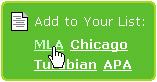 and RedLightGreen will automatically create an on-the-fly citation. The Your List window opens, and this newest title appears
at the top.
|
| Your List
Adding to Your List or clicking the Your List link in the banner opens a separate window. Here is your compiled list of RedLightGreen citations to consider as you continue
researching and refining information. From Your List, you can sort your citations by different criteria, such as by author
or date of publication; discard ones you no longer need; verify the specific edition you need to cite; apply a different citation
style to the list if necessary; and then print or e-mail it.
View Details: This link takes you back to the original item if you need to check record details.
Not the right edition? This link opens the Edition List window where you can locate the correct edition as needed.
E-mail List: The E-mail List link enables you to e-mail your list of citations to yourself or others. Whether you're collaborating with
a group to do research or working alone, you will find this e-mail feature to be a big advantage.
Printer-friendly Version: You can also create a printer-friendly version of your citation list. This feature makes it easy to copy & paste your citations
to any word processing program, moving you that much closer to a completed bibliography.
Your List is automatically saved across sessions, enabling you to keep track of bibliographic information across several days - weeks,
even - and from different work stations.
Note: With so much variety to the kinds of resource materials you may need to cite (e.g., works online, reprinted, in translation,
with multiple editors, etc.), please make sure to check your chosen style guide for complete accuracy - down to the last comma!
|
| Related Links
From the title display, you have the option to check additional online resources. Some of the related links you may see include
online booksellers, ebook sites, and Web-based educational resources.
|
|
|
Top 5 Questions
|
| What database is RedLightGreen based on?
A: RedLightGreen's database is based on the RLG Union Catalog. The RLG Union Catalog represents comprehensive materials for
research that have been cataloged by librarians at leading academic institutions worldwide. For quick facts on the RLG Union
Catalog click here. For information about RLG, please visit www.rlg.org.
Currently, RedLightGreen's database is the books portion of the RLG Union Catalog.
|
| How do I set or change my library preference?
A: For new users of RedLightGreen, you can set your library preference when you complete step 3 of the Sign In process. Once
you've signed in, you can change your library preference at any time. Click Your Account in the red banner and select the ...different library link.
The Get it link lets you choose a library when you're ready to locate a particular title. If previously you've chosen a library but
want to check a title's availability at a new location, just click the link in the green box that says, Other libraries.
|
| When I connect to RedLightGreen I receive a message that tells me cookies aren't enabled in my Web browser. Do I have to
change that setting?
A: To function properly, RedLightGreen requires cookies to be turned on in the browser. The cookies remember session information
and, without them, the system can't correctly determine whether you are in a current session or if your session has ended.
For Internet Explorer, cookies can be turned on by clicking Tools followed by Internet Options. In Netscape, depending on your version, click Tools followed by Cookie Manager, or for 4.x versions, Preferences in the Edit menu, followed by Advanced.
|
| I don't see my library offered under Get it. Am I out of luck or can it be added?
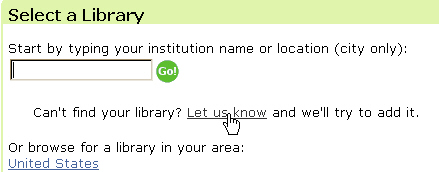
A: It's possible that we don't have the URL for your library's online public access catalog (OPAC). If so, you can e-mail
us with your library name, location, and Web address by clicking the Let us know link in the Select a Library window.
We'll do our best to add your library OPAC to RedLightGreen's list. If we have the wrong URL for your library and you know
the correct one, please contact us through the Let us know or Feedback links.
 |
| How do I search for a particular edition?
A: You can search for a particular edition of a book by typing the ISBN directly in the search box, leaving off any hyphens.
In most cases, RedLightGreen returns a single edition of this title with its unique number, or a title that has multiple editions
with the same ISBN.
|